> ## Documentation Index
> Fetch the complete documentation index at: https://docs.recomi.powerdrill.ai/llms.txt
> Use this file to discover all available pages before exploring further.
# Integrate Recomi AI Agent with Squarespace
> Follow this step-by-step guide to seamlessly integrate a Recomi AI agent with Squarespace, enhancing your website's interactive capabilities.
## Step 1: Setting Up Your Recomi AI Agent
To embed a Recomi AI agent into your [**Squarespace**](https://www.squarespace.com/) website, start by logging into your Recomi account. If you don't have an account yet, you can create one for free. After logging in, configure your agent within the Recomi platform by uploading relevant data sources, such as text file, documents, which will help the agent build its knowledge base.
Follow these steps to ensure a smooth integration of your Recomi AI agent into your Squarespace website.
## Step 2: Generate and Copy Your Recomi AI Agent Embed Code
1. Every agent created in Recomi comes with a unique embed code that allows it to be integrated into your website or application. Once your agent is set up, navigate to the [**Dashboard**](https://recomi.powerdrill.ai/agents) and select the specific agent you want to integrate with Bubble.
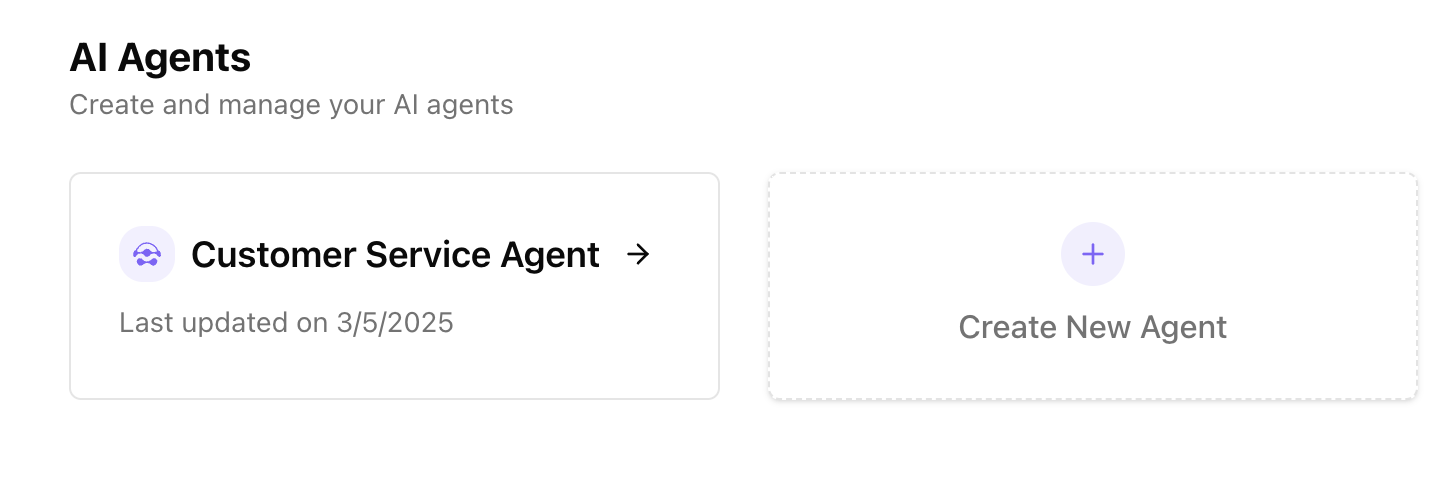 2. Clicking on the agent will take you to its agent detailed page. From here, go to the **Integration** section.
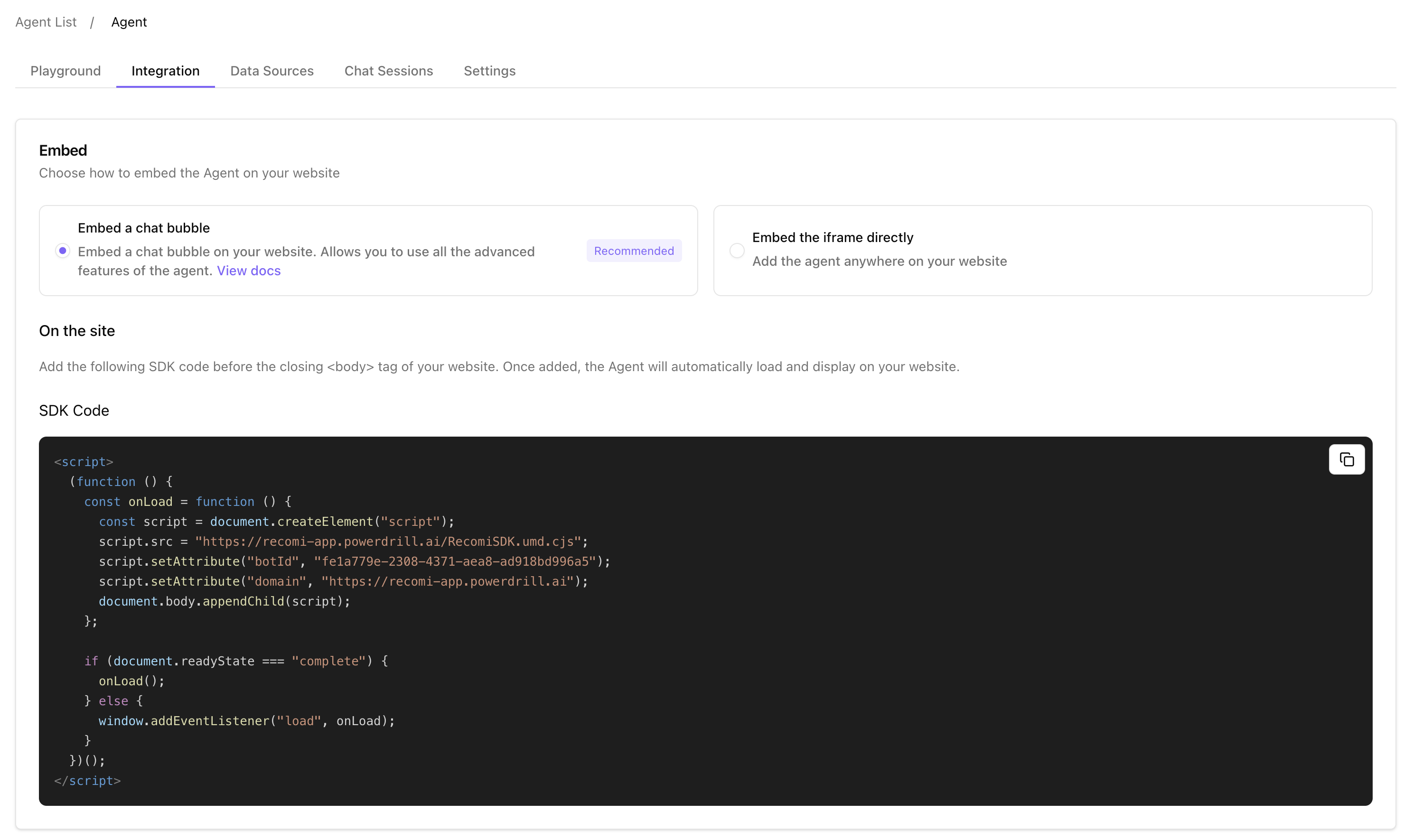
3. On this page, you will find the option of **Embed a chat bubble** to Copy Script. Click this button to copy the agent's embed SDK Code.
2. Clicking on the agent will take you to its agent detailed page. From here, go to the **Integration** section.
3. On this page, you will find the option of **Embed a chat bubble** to Copy Script. Click this button to copy the agent's embed SDK Code.
 ## Step 3: Embedding the Recomi AI Agent into Your Squarespace Website
1. After copying the embed code, log into your [**Squarespace**](https://www.squarespace.com/) account and access your account dashboard.
## Step 3: Embedding the Recomi AI Agent into Your Squarespace Website
1. After copying the embed code, log into your [**Squarespace**](https://www.squarespace.com/) account and access your account dashboard.
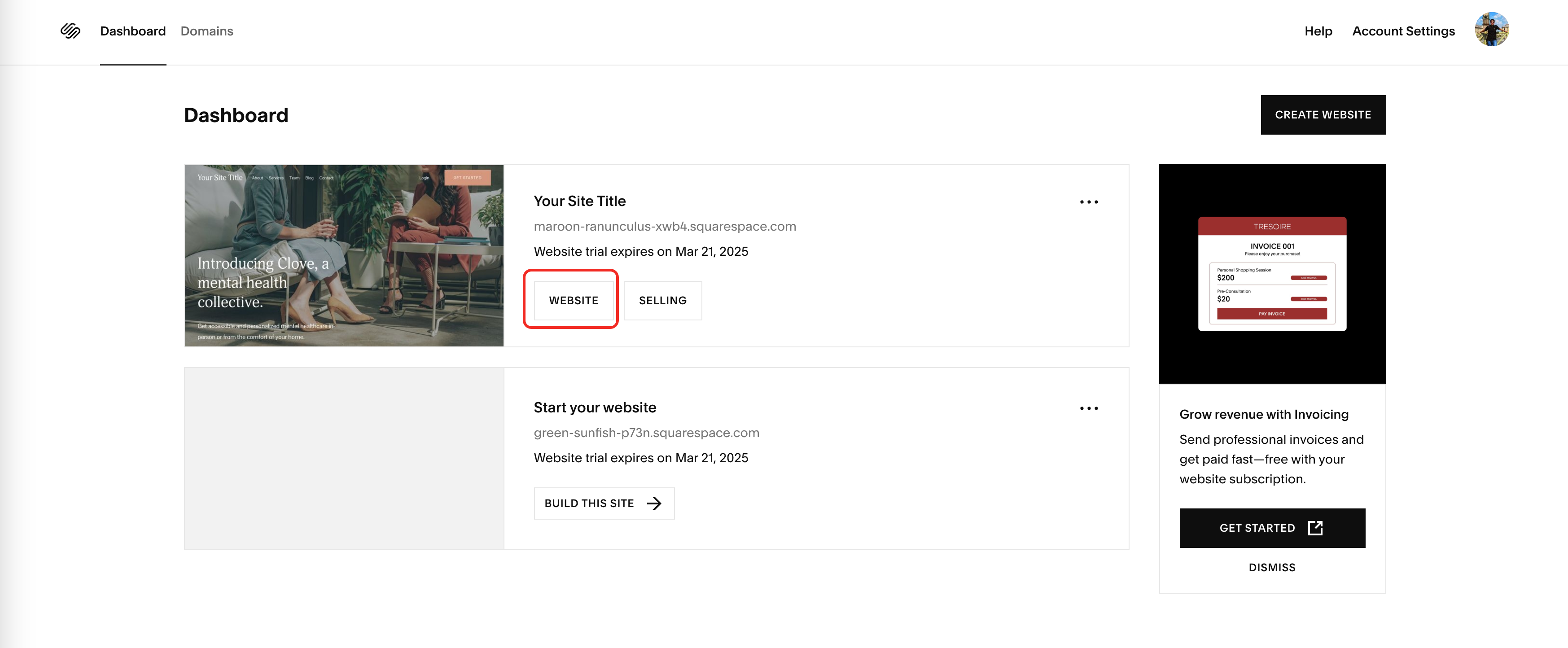 2. Select the Squarespace website where you want to integrate the agent, then click on the **WEBSITE** button. In the website editor, click on the **EDIT** button.
 3. In the Squarespace Editor, at the proper location of the page, click on the **ADD BLOCK** button to add a new block.
 4. In the **Add Block** menu, search for **Embed**, select **Embed** and click on it.
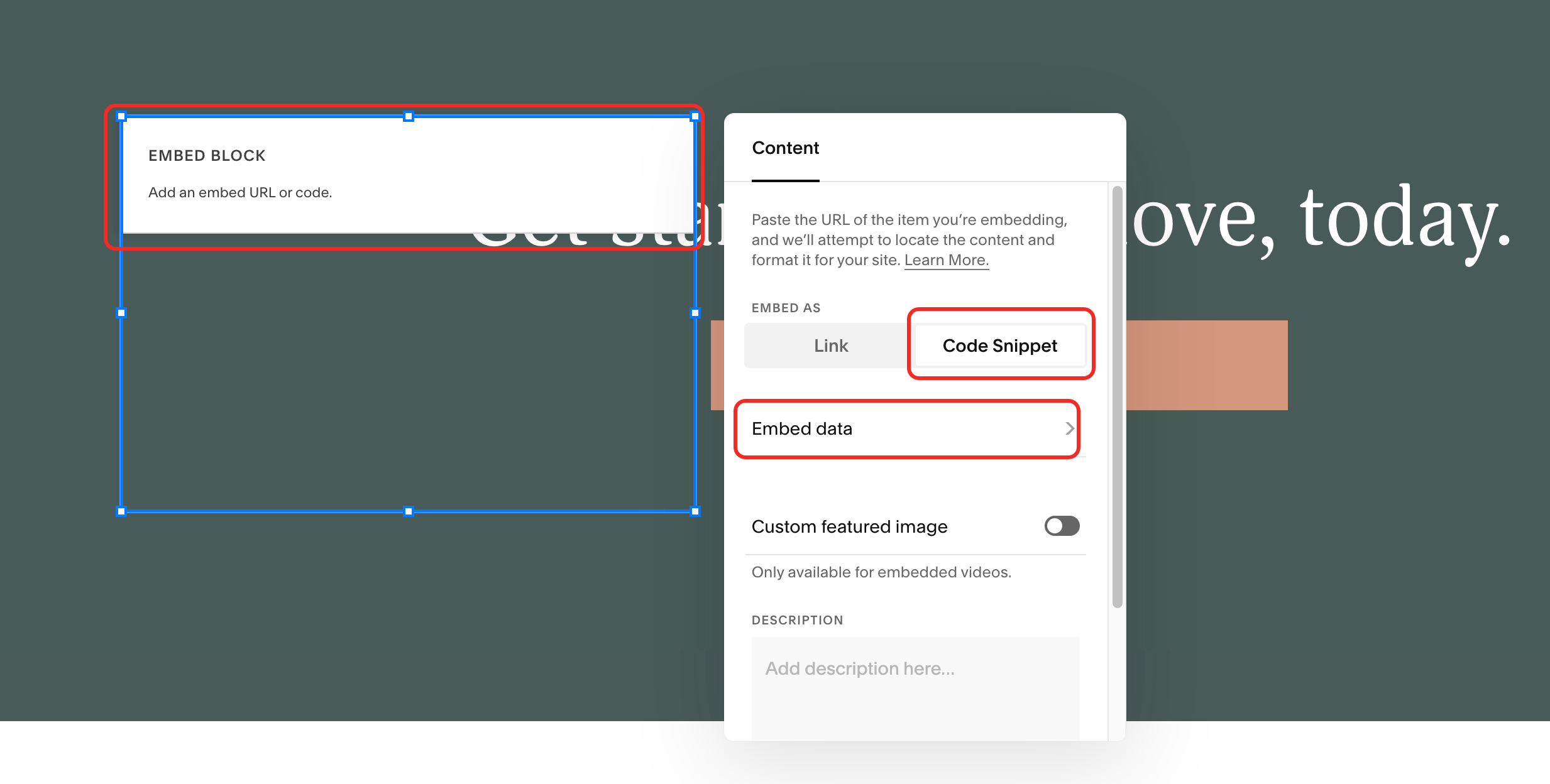
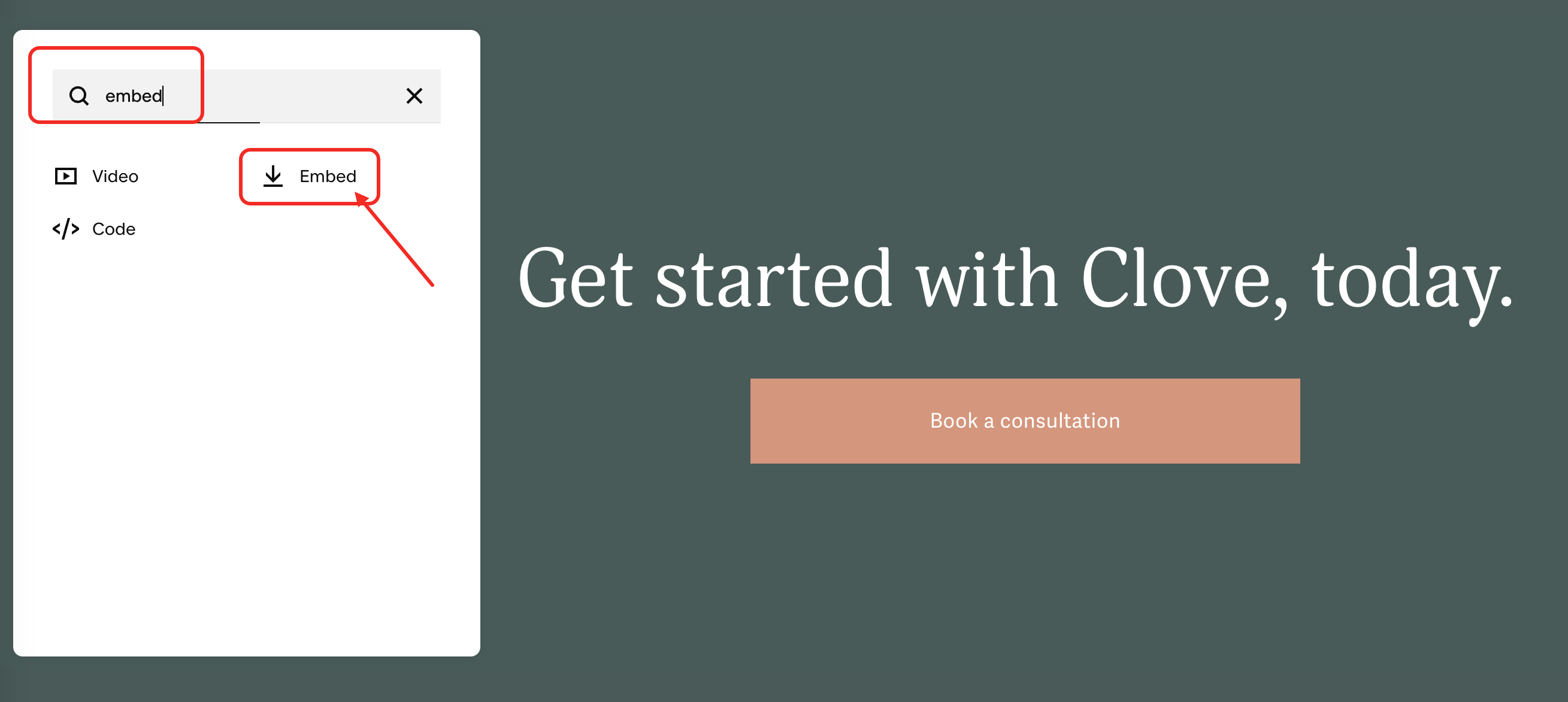 5. Click on the **EMBED BLOCK**, select EMBED AS **Code Snippet**, and then click on the **Embed data** option.
 6. Paste the copied embed code into the editor. Once done, click on the **SAVE** button.
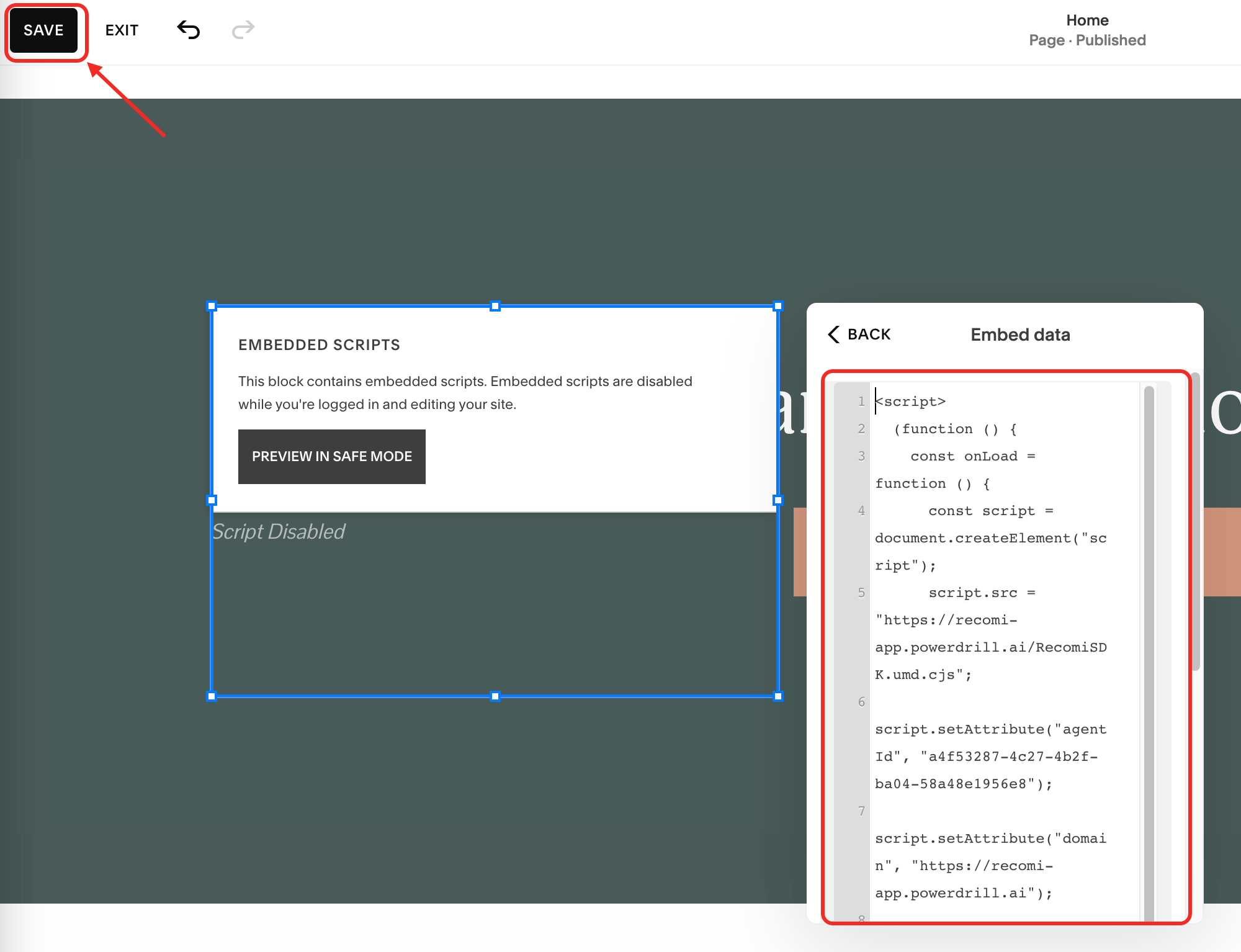 7. Then exit. You can now visit your Squarespace website to view the agent's functionality.
 Congratulations! Your Recomi AI agent is now successfully integrated into your Squarespace website.
## Customizing Your Recomi AI Agent
To personalize the appearance of your agent, go to your Recomi dashboard, select the agent you want to modify, and navigate to the **Playground** and **Settings** tab. You'll find various customization options to adjust the agent to match your branding and service:
* agent response language
* preset questions
* welcome message
* avatar and icon
* colors and visual style
Congratulations! Your Recomi AI agent is now successfully integrated into your Squarespace website.
## Customizing Your Recomi AI Agent
To personalize the appearance of your agent, go to your Recomi dashboard, select the agent you want to modify, and navigate to the **Playground** and **Settings** tab. You'll find various customization options to adjust the agent to match your branding and service:
* agent response language
* preset questions
* welcome message
* avatar and icon
* colors and visual style